Global Search
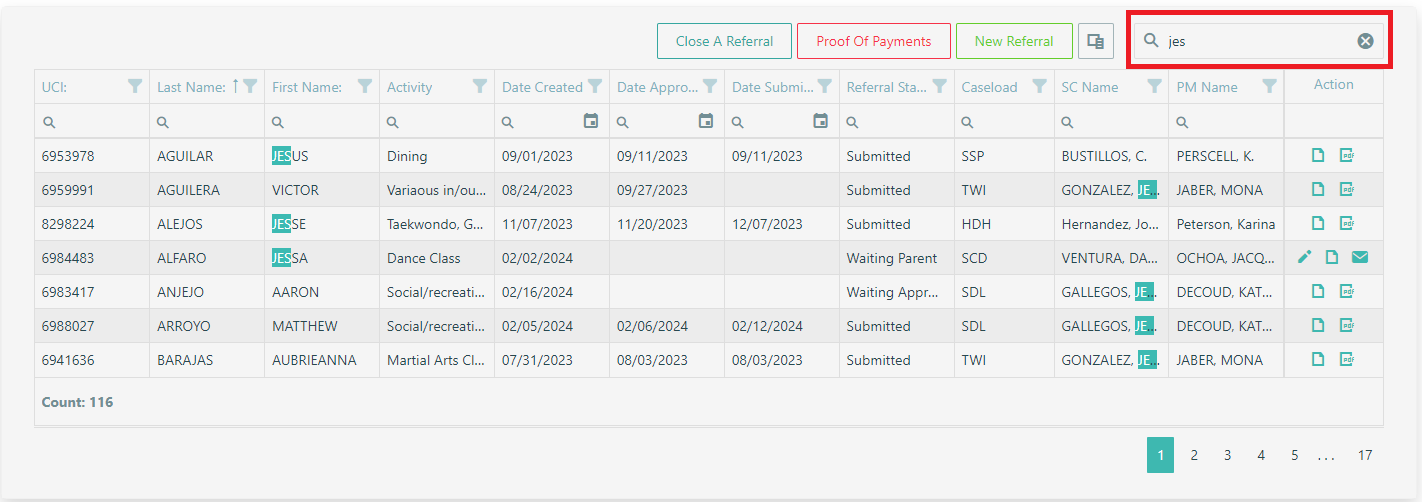
The global search panel allows searching for values in all columns at once. Search string must not have a blank space before and after, especially when searching for UCI#, Last Name, or First Name, for a blank space is considered as part of the search string.
Advanced Column Search
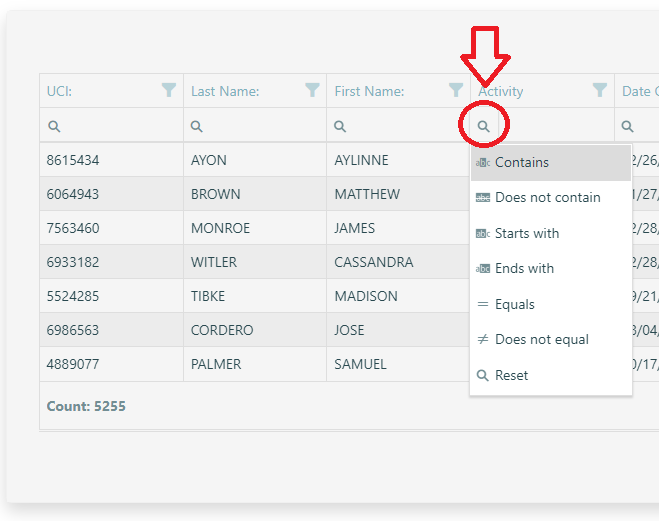
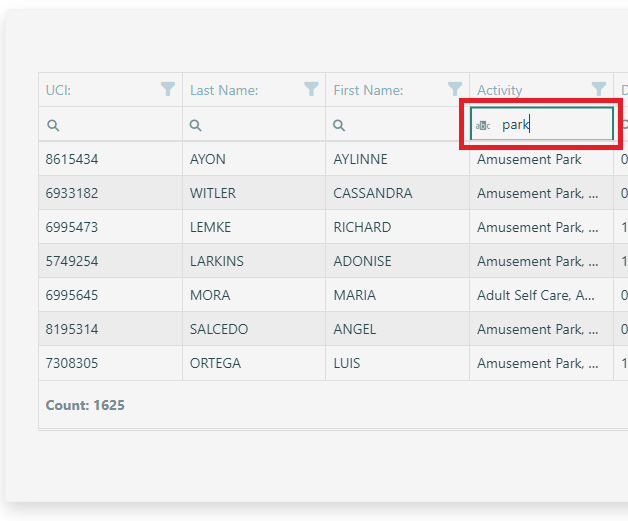
You can use the advanced search feature by clicking the magnifying glass icon on the columns. Then specify the search criteria you desired for that specific column.
Filter Row
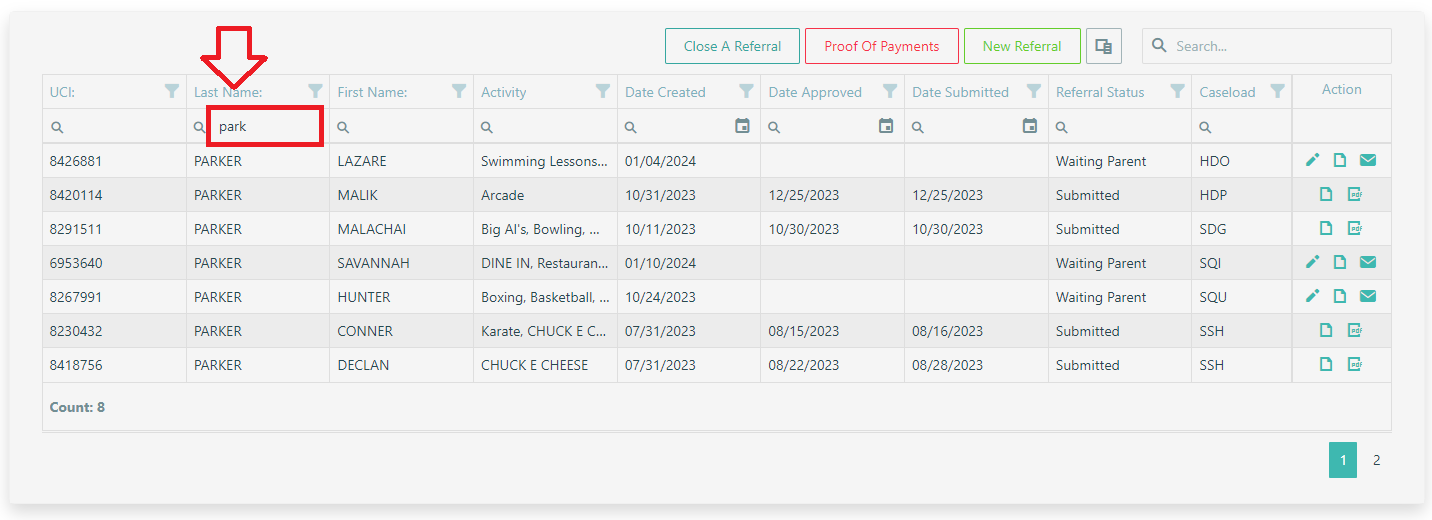
The filter row allows you to filter data by individual column's values, simply enter the search string on the column search field.
Header Filter
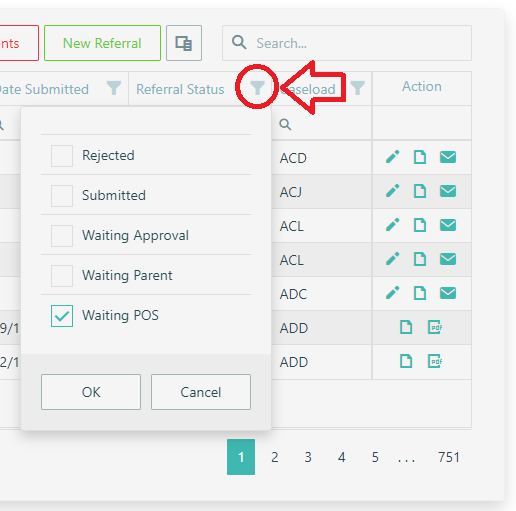
The header filter allows you to filter values in an individual column by including or excluding them from the applied filter. Clicking a header filter icon invokes a popup menu with all the column's unique values. You can include or exclude values from the filter by selecting or clearing their selection in this menu. Click "OK" button when done making your selections.
Cancel Filtering
Simply click the "Reset/Reload" button
Single Mode Sorting
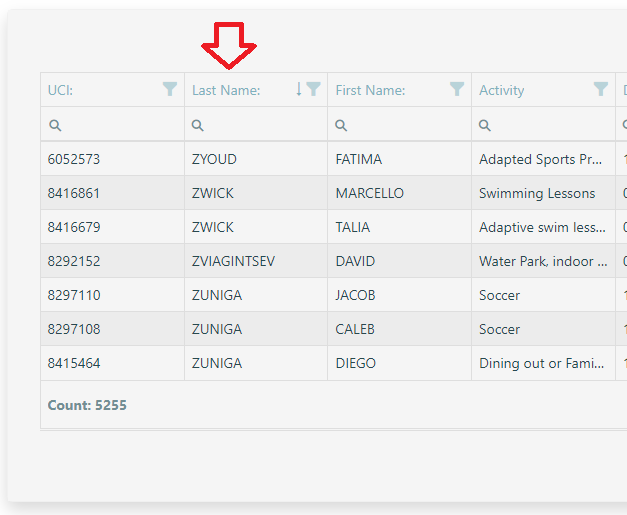
You can click a column header to sort by the column. Subsequent clicks on the same header reverse the sort order. When you sort by a column, the sorting settings of other columns are canceled.
Multiple Mode Sorting
In multiple mode, click a column header while pressing the Shift key to sort by the column (or right-click on the column header to use the context menu). Sorting settings of other columns remain intact.

Cancel Column Sorting
To cancel a column's sorting settings, the user clicks the column's header while pressing Ctrl (or right-click on the column header to use the context menu).
Or simply click the "Reset/Reload" button
Navigation
Use the Page Navigator to view pages of the Data Grid.

Tools
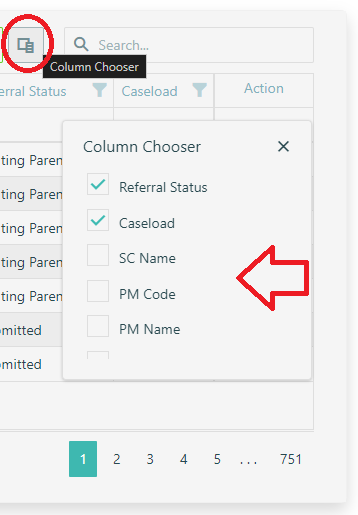
To hide or show column(s) of Data Grid, click the Column Chooser icon next to Search Panel. A popup window will show list of columns that were shown or hidden. You may check/uncheck the checkbox next to the column you wish to show or hide.